

How to Use POS System: Step-by-Step Guide

Learning how to use a POS system effectively is essential for running smooth, efficient business operations. A modern POS system acts as the central hub of your store, combining software and hardware components to process sales transactions, manage inventory tracking, support customer relationship management, and handle various payment methods, far beyond what a traditional cash register could do.
When used correctly, the right POS system streamlines daily operations, improves customer satisfaction, and keeps things running during peak hours. Retail stores rely on it to manage inventory and track key metrics; restaurants depend on a restaurant POS system for table management, order accuracy, and kitchen communication; and service businesses use it for invoicing and customer management.
In this guide, we'll walk step-by-step through setup and daily use so you can configure your system correctly and get the most out of your hardware from day one.
What Is a POS System, and How Does It Work?
A point-of-sale system is more than just a place to accept payments, it's the operational core of modern business. Instead of being just a cash register, today's systems connect your POS terminal, inventory management tools, and reporting features into one unified platform.
Most POS setups include:
-
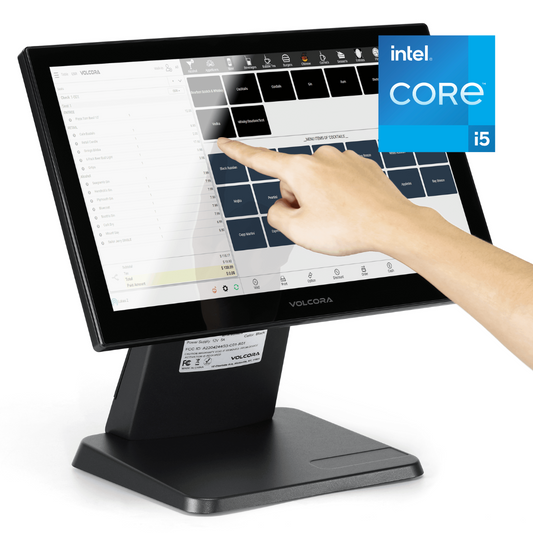
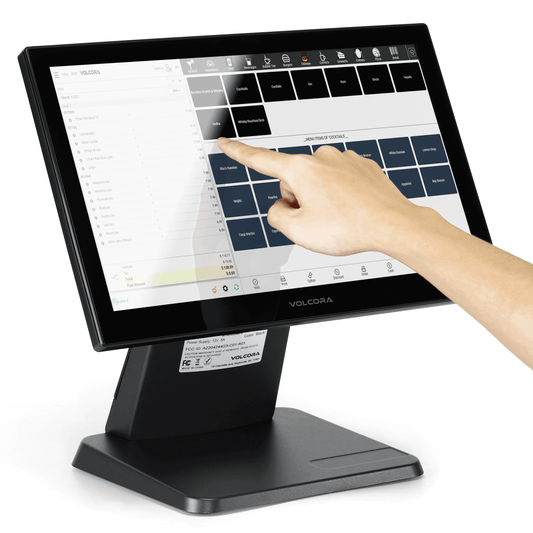
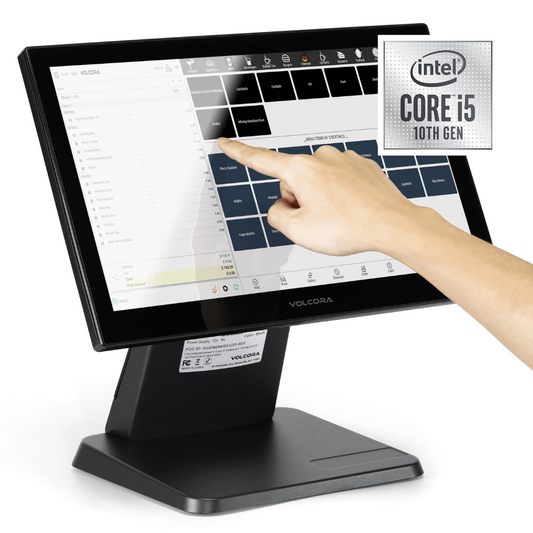
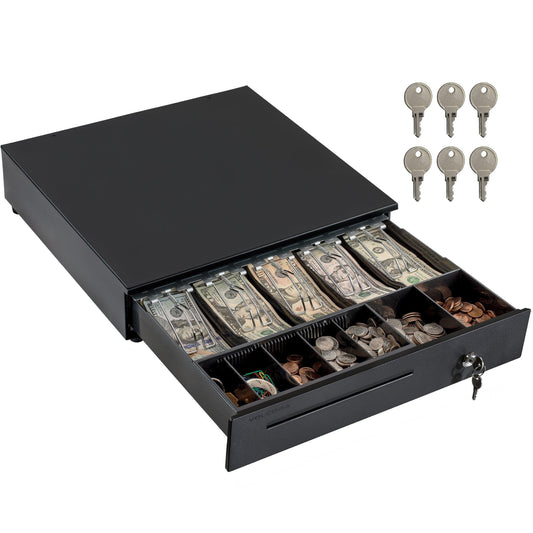
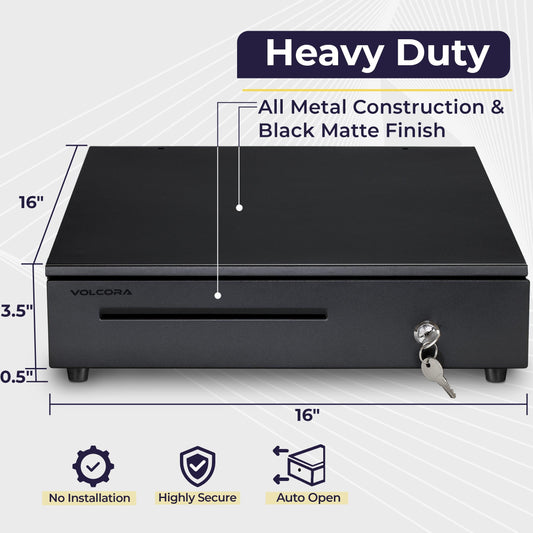
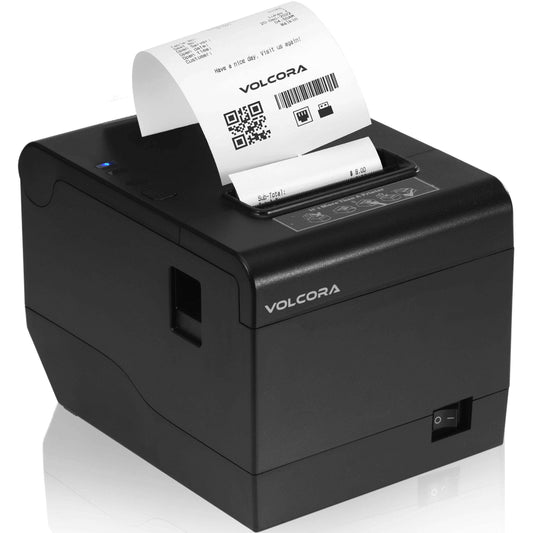
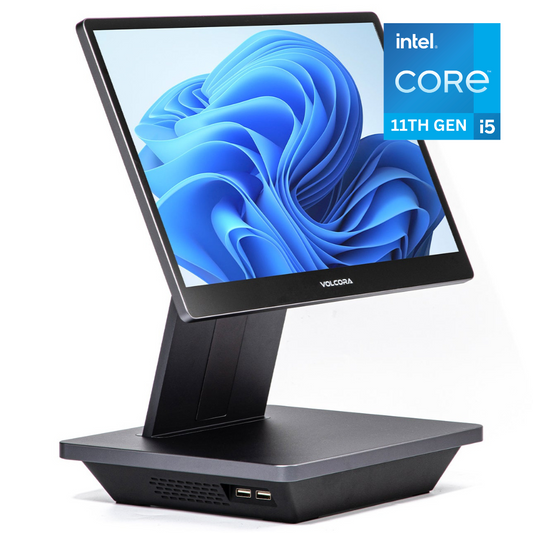
POS hardware: A POS terminal (the touchscreen computer running your POS app), barcode scanner, receipt printer, cash drawer, and your own external payment terminal or card reader.
-
POS software: Often delivered as a POS app installed on your terminal. Volcora terminals are software-agnostic, meaning you can run any compatible Windows or Android POS app you already use.
-
Payment processing: Handled entirely through your own payment provider and external card reader, not bundled with the terminal hardware.
When a product is scanned, the POS system calculates totals, applies discounts and sales tax, accepts payment through your connected card reader, generates a printed or digital receipt, and instantly updates real-time inventory tracking. Many POS apps are cloud-based and can sync with accounting software and online store platforms.
Step 1: Set Up Your POS System

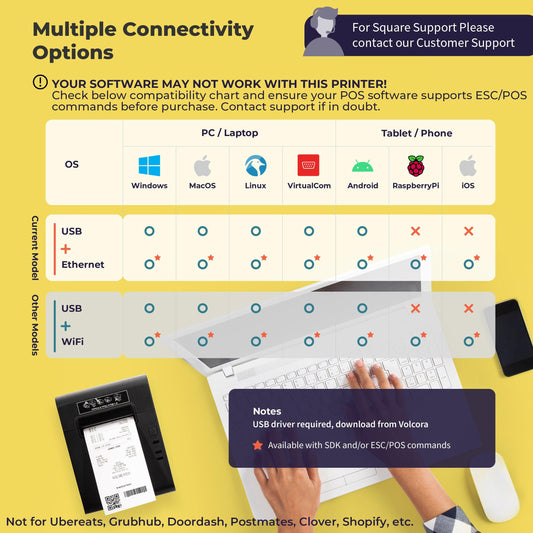
Getting your hardware configured correctly ensures smoother operations from day one. Start by setting up your POS terminal, the central workstation where your POS app will run. Volcora terminals support Windows and Android, and connect to peripherals via USB, USB-C, Ethernet, Bluetooth, and Wi-Fi.
Connect your peripherals:
-
Receipt printer: connect via USB or Ethernet for printed receipts at checkout.
-
Barcode scanner: plug in via USB for fast product scanning.
-
Cash drawer: typically connects through the receipt printer's RJ11 port.
Once hardware is connected, install and configure your POS app. Create admin user accounts, enter your tax and VAT information, and verify that your payment terminal is working correctly with your provider. Run a few test transactions before going live to confirm everything is communicating properly.
Important: Before purchasing a Volcora terminal, confirm that your chosen POS app is compatible with Windows 11 or the Android version your terminal runs. Volcora hardware does not include or bundle any POS software.
Step 2: Add Products and Inventory
Strong inventory management starts with accurate product setup. Create product listings with SKUs and barcodes so you can easily track inventory and manage stock levels in real time. If your business has complex inventory or multiple locations, advanced inventory features and management tools become especially important.
Set prices, tax rates, and categories clearly. If you sell products with variations, use variants to organize sizes, colors, or models efficiently. Enabling low-stock alerts helps avoid lost sales and supports real-time inventory management. Consistent inventory tracking practices keep operations smooth, especially during peak hours.
Step 3: Process Sales and Handle Transactions

Processing sales is where your POS setup truly proves its value. To complete a sale, scan the product using your connected barcode scanner or select it manually within your POS app. The system calculates totals automatically, applies discounts and sales tax, and prompts payment through your external card reader.
Your card reader handles payment acceptance, whether that's contactless, chip-and-PIN, mobile wallets like Apple Pay, or other methods supported by your payment provider. Once payment is confirmed, a printed or digital receipt is issued, and real-time inventory tracking updates automatically.
Returns and exchanges follow a similar process, with automatic stock adjustments keeping data accurate across all reports.
Step 4: Manage Staff and Customers
A well-configured POS system supports both employee management and customer relationship management. Create individual user accounts within your POS app with role-based permissions to improve accountability and reduce checkout errors.
Most POS apps allow sales tracking by employee and generate performance reports. On the customer side, built-in tools help store customer data, track purchase history, and manage loyalty programs. Strengthening customer relationships through rewards and personalized promotions directly improves satisfaction over time.
Step 5: Track Reports and Business Performance
One of the most valuable features of a good POS system is its reporting capability. Daily sales reports allow you to track key metrics such as revenue, transaction volume, and peak trading hours.
Inventory reports help you manage stock efficiently, identify slow-moving products, and support smarter purchasing decisions. Monitoring gross vs net sales, sales trends, and profitability helps ensure your system continues supporting long-term growth. If your POS app integrates with accounting software, syncing financial data becomes significantly simpler.
Using a POS System for Different Business Types

While the core functions of a POS system remain the same, how it's used varies by business type. Retail stores, restaurants, and service providers each rely on different features day to day.
Retail Businesses: Retailers rely heavily on inventory management, barcode scanning, and real-time stock tracking. A Volcora terminal paired with a compatible retail POS app helps manage products across both physical and online store channels, keeping operations smooth during busy periods.
Restaurants: A restaurant POS system focuses on table management, order accuracy, and kitchen communication. The system must handle fast service, split bills, various payment methods, and integration with a kitchen display system, so kitchen staff receive orders quickly. A reliable, stable terminal is critical in this environment.
Service Businesses: Service providers use POS systems for appointments, invoicing, and customer management. Rather than complex inventory tracking, the focus is on payment processing, customer records, and improving repeat business.
Common Mistakes to Avoid
Even the right POS system can underperform if misused. Avoid these common mistakes to protect both your operations and your budget:
-
Assuming payment processing is bundled with your terminal: Volcora terminals are hardware only. You must bring your own payment provider and external card reader. Factor this into your setup planning.
-
Focusing only on upfront hardware cost: Ongoing expenses like payment processing fees, POS software subscriptions, and add-on features can significantly impact long-term costs.
-
Skipping software compatibility checks: Not all POS apps are compatible with every version of Windows or Android. Verify compatibility before purchasing your terminal.
-
Skipping staff training: Without proper training, employees are more likely to make errors at checkout, reducing efficiency and affecting customer experience.
-
Ignoring reports: Failing to review sales and inventory reports prevents you from tracking key metrics that directly influence performance and growth.
-
Overlooking connectivity needs: Confirm your chosen peripherals (scanner, printer, cash drawer) connect via a supported interface (USB, USB-C, Ethernet, Bluetooth, or Wi-Fi) before purchasing.
Careful planning, realistic budgeting for the cost of a new POS system, and proper setup make a significant difference in both day-to-day performance and long-term return on investment.
Tips to Use Your POS System More Efficiently
Once your POS system is fully set up, small habits help maintain accuracy and reduce errors over time:
-
Automate sales report generation to save time and catch trends early.
-
Keep your POS app and terminal operating system updated for security and new features.
-
Review inventory regularly to maintain accuracy and catch discrepancies.
-
Keep POS hardware clean and maintained to support consistent, reliable performance.
-
Use a mobile POS device during peak hours for faster, flexible service on the floor.
These steps help your POS setup remain an asset rather than just a cash register replacement.
Final Thoughts: Turn Your POS System Into a Growth Engine

Learning how to use a POS system effectively turns it into more than just a payment tool, it becomes the operational backbone of your business. From real-time inventory tracking and customer loyalty programs to detailed reporting and integrations with accounting platforms, a well-implemented system supports long-term growth.
The key is pairing the right software with reliable, compatible hardware. Whether you run a retail store, restaurant, or service business, a stable and software-agnostic terminal gives you the freedom to choose the POS app that fits your workflow. Choosing dependable hardware from providers like Volcora means your checkout workstation stays rock-solid, no matter how busy it gets.
Frequently Asked Questions
Is it hard to learn how to use a point of sale system?
Most modern POS apps are designed to be user-friendly, with intuitive dashboards and guided setup. With basic training, most staff members can quickly learn daily functions like processing sales and handling returns. The hardware setup (connecting a terminal, scanner, printer, and cash drawer) is typically straightforward, especially with terminals like Volcora's that offer plug-and-play peripheral connectivity.
Does a POS terminal come with payment processing built in?
Not always, and not with Volcora terminals. Volcora's POS terminals are hardware-only and payment-agnostic, meaning you use your own payment provider and bring your own external card reader or payment terminal. This gives you full control over fees, providers, and payment methods.
Can POS systems work offline?
Some POS apps offer offline functionality, allowing basic transactions to continue if your internet connection drops. However, features like contactless or mobile wallet payments (which require real-time authorization) typically won't work offline. Once reconnected, the system usually syncs data automatically. Offline capabilities vary by POS app, check with your software provider.
Does it track inventory automatically?
Yes, a properly configured POS app updates inventory in real time with every sale, return, or manual adjustment. This reduces manual tracking and helps maintain accurate stock levels.