

Cash Drawer Buying Guide: Sizes, Cables & POS Compatibility

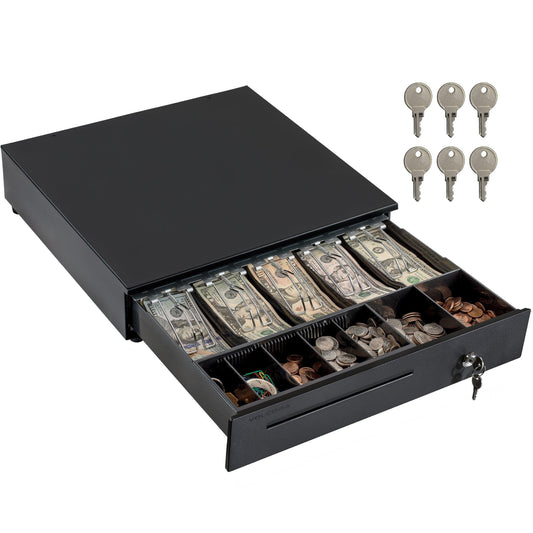
Cash drawers are the quiet workhorse of checkout, keeping cash transactions organized, secure, and fast. From cafés to multi-lane retail, the right cash register drawer prevents clutter, speeds counts, and protects your takings with durable steel, solid locks, and adjustable bill/coin trays.
Choose a format that fits your workflow: manual for simple setups, printer-driven for automated opens, or heavy-duty models for higher volumes and demanding industry applications. In this buying guide, we’ll cover sizes, connectivity, and must-have accessories, plus how to match a drawer to your POS, and growth plans as small businesses grow.
Key Takeaways
-
Well-built cash drawers secures cash transactions and keeps checkout organized.
-
Match the style and size (manual, printer-driven, heavy-duty) to your POS systems and workflow.
-
Proper setup and routine upkeep (mounting, inserts, keys) ensure long life and smooth daily operation.
Cash Drawer Sizes Explained (13", 16", 18")
Pick your preferred size by counter space and cash volume. More width means more capacity and separation for bills/coins.
![Buy [Refurbished] 13'' Mini Cash Register Drawer, 4 Bill/5 Coin, Black, Stainless Steel Front, Fully Removable Cash Trays online](https://cdn.shopify.com/s/files/1/0257/3225/1703/files/500054_3.jpg?v=1739980926)
-
13" (compact): Small footprint for tight counters and tablet POS. Typical layouts skew smaller (e.g., 4-bill with coin tray). Best for lower cash volume or pop-ups.
-
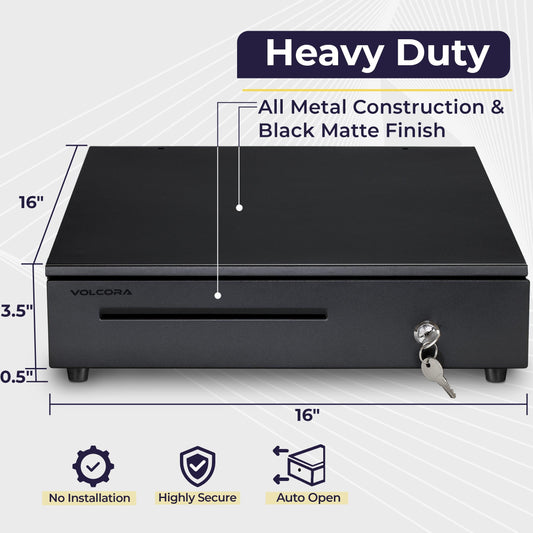
16" (standard): The go-to for most lanes. Higher capacity (common 5-bill with larger coin tray) and faster change-making at busy checkouts.
-
18" (high capacity): Extra room for cash-heavy operations, media slots, and larger coin trays; ideal for peak-hour retail or restaurant cash wraps.
Good to know: Many models offer printer-driven auto-open via RJ11/RJ12 (and some USB); coin trays are typically removable/swappable for quick counts. Always check the exact bill/coin layout and interface in the product specs.
Key Components
A cash drawer is a simple, secure system. Know the parts, and you’ll pick the right drawer for your lane and volume.
|
Component |
Purpose |
|
Till (insert) |
Organizes cash for quick access; fixed insert with removable coin tray |
|
Bill compartments |
Separate notes by denomination for faster change-making |
|
Coin tray |
Shallow tray for coins; lifts out for counts and swaps |
|
Locking mechanism |
Keyed lock (and lock positions) to limit access and secure the drawer |
|
Interface cable |
Connects to receipt printer/POS, (e.g., RJ11/ RJ12 or USB) for auto-open |
|
Chassis/ frame |
Steel housing for durability; heavier duty frames resist daily wear |
Tip: Choose stainless steel front construction for high-traffic counters; confirm cable/interface and coin-tray layout in the product specs to match your POS and cash volume.
Under-Counter vs. Desktop Cash Drawers

Pick the form factor that fits your lane and cable run. Desktop (countertop) drawers sit on the counter for quick installs and easy service. Under-counter drawers mount beneath the surface to free workspace and hide cabling. We also keep steel under counter mounting brackets compatible with 16” x 5” x 2” cash drawers.
Connectivity & control: Auto-open drawers plug into your receipt printer via RJ11/RJ12 “kick” port; the printer fires the open signal at the end of a cash sale. Manual drawers don’t need a connection, and open by key or push/latch.
Sizes & use cases: Compact 13″ is great for tablet POS and tight counters; 16″ is most commonly used; some lines include larger, higher-capacity options. Check each product page for the exact bill/coin layout and interface.
Quick Comparison
|
Option |
Best For |
Install & Cabling |
Notes |
|
Desktop (Countertop) |
Fast setup, easy service access |
Sits on counter; short cable to printer/ POS terminal |
Widely used across Volcora auto-open and manual lines. |
|
Under-Counter (Mounted) |
Clean counters, tighter security |
Requires bracket and mounting screws |
Brackets offered for 16” and 13” drawers. |
|
Simple, offline-ready stations |
No power/cable required |
Opens by key/push; ideal as backup or for low-volume lanes. |
|
|
Auto-Open Drawer |
Busy lanes needing speed/control |
RJ11/RJ12 to receipt printer |
Printer triggers open; includes lock positions and media slots (model-dependent). |
Tip: Verify bracket size (13″ or 16″), interface (RJ11/RJ12 or USB where listed), and tray layout on the specific SKU before you buy.
Cash Drawer Cable Types (RJ11, RJ12, USB)

Most auto-open drawers connect to a receipt printer’s “kick” port using RJ11 (6P4C) or RJ12 (6P6C) cables. The printer sends the open pulse after a cash sale. Match the connector type to your printer/drawer and use POS-grade cables (phone cables aren’t wired the same).
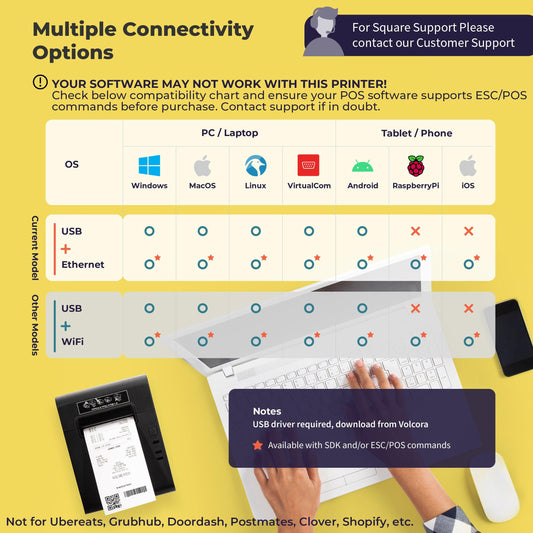
Some models use USB instead, appearing as HID/virtual COM and may require a driver or utility to test opens. Always check the product’s compatibility notes, cable length, and pinout before purchase, and power down equipment before swapping cables.
Printer-Driven vs Direct-Connect Drawers
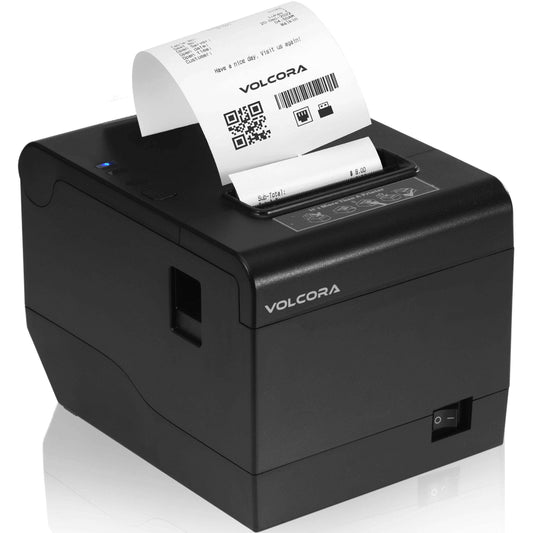
Printer-driven drawers plug into the receipt printer’s kick port and open when the printer fires the pulse. Direct-connect (USB) drawers plug into the POS terminal and open via driver/utility or POS software.
Quick Comparison
|
Option |
Best For |
Install & Cabling |
Notes |
|
Printer-Driven |
Standard retail/hospitality lanes with a receipt printer at the counter |
RJ11/RJ12 cable from drawer to printer; printer sends the open pulse after a cash sale |
Rock-solid, no extra power brick in most cases; match voltage (often 24V) and brand wiring; check drawer/printer compatibility. |
|
Direct-Connect |
Setups without a kick-port printer, kiosks, or software that controls the drawer directly |
USB from drawer to POS terminal; may require driver/utility (HID/virtual COM) |
Flexible placement; confirm OS support (Windows/Android), any external power needs, and that your POS app can trigger/test opens |
Tips:
-
Verify the cable type (RJ11 vs. RJ12), pinout, and length; use POS-grade cables, not phone cords.
-
If you need a drawer-open status sensor, confirm support in both the drawer and printer/driver.
-
Use the printer’s self-test or ESC/POS “kick” command to test opens before going live.
-
Power down equipment before swapping cables to protect ports.
More Setup Guides & Next Steps

If you’re configuring drawers for Square, Clover, Toast, or Lightspeed, the same core connection point applies, match the interface and test opens before go-live. We’ll give you a brief walkthrough of Square and Clover, but for a deeper dive, read How to Choose a Cash Drawer for Your POS System.
Square Cash Drawer Setup
Connect the cash drawer to your receipt printer’s kick port using the proper RJ11/RJ12 cable, then enable it in Square POS under Settings - Hardware - Cash Drawers, and link it to the printer at that station. Run a quick test (printer self-test or Open Cash Drawer in the app) to confirm it only opens after a cash sale or with authorized manual open.
Set manager-only permissions for manual opens, and check cable strain relief and bracket screws to prevent intermittent triggers. Note: manual drawers don’t auto-open, so use a printer-driven model for Square.
Clover Cash Drawer Integration
Plug the drawer’s RJ11/RJ12 lead into your Clover printer/hub kick port (match the required voltage - commonly 24V - and the brand’s wiring). In the Clover device, go to Setup/Printers - Cash Drawer, enable the drawer, and choose when it opens (e.g., on cash payments).
Print a test receipt or use Open Drawer to verify operation and, if supported, the open/closed status sensor. Lock down access with manager-level permissions for manual opens, and keep a spare coin tray and kick cable on hand for quick swaps during peak periods.
Portable & Specialty Cash Storage
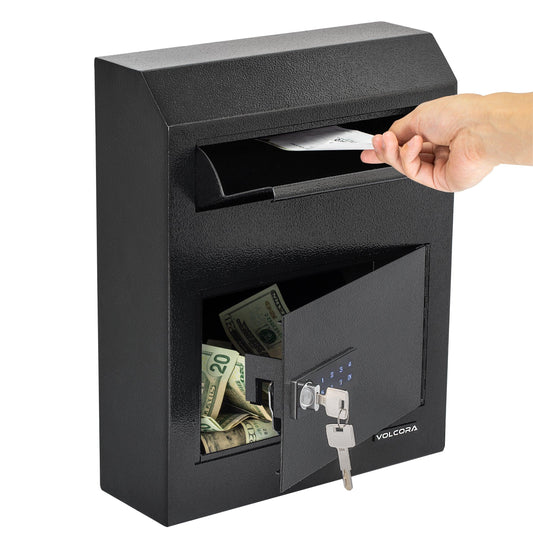
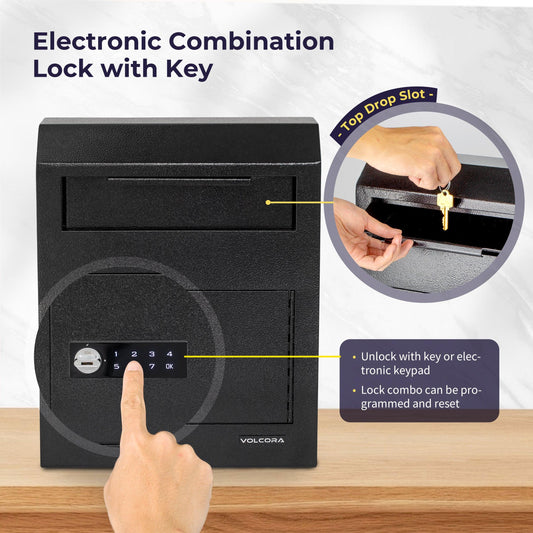
When mobility matters, swap bulky drawers for cash boxes. It’s lightweight, lockable, and easy to carry between counters, pop-ups, or back office. Volcora cash boxes feature sturdy metal construction, keyed or combination locks, and a removable tray to sort bills and coins. They’re available in a variety of colors (including classic black) to match your setup.
How to choose:
-
Mobility: Go with cash boxes for grab-and-go security.
-
Volume: Pick heavy-duty drawers for constant cash handling.
-
Space: Use compact or flip-top designs where every inch counts.
Built for Small Businesses: Secure, Scalable

Volcora cash drawers and registers give small teams big-store control with fast, reliable cash handling without bloated bundles. Choose compact 13" or standard 16" drawers, match coin tray layouts to your float, and add under-counter brackets and spare trays as you grow.
-
Budget smart: Start with a simple setup and add accessories over time.
-
Stay organized: Printer-driven opens, media slots, and labeled coin trays keep counts clean and lines moving.
-
Scale cleanly: Standardize cables and mounts so new lanes roll out in hours, not days.
Read more on how our POS hardware empowers small to medium businesses.
Cash Drawer Features and Considerations
The right cash drawer speeds checkout, improves accuracy, and reduces loss. Focus on three essentials: a secure locking system, a smart compartment layout, and durable steel construction.
Security and Locking Mechanisms
Security protects your cash and your team. Choose drawers with solid steel housings, reinforced corners, and a reliable keyed lock; add electronic or printer-triggered opening so the till only pops after a valid transaction. For higher control, use drawer-open sensors, audit trails, or camera tie-ins. If you store cash overnight, lift the coin tray and secure it in a safe. For broader guidance on protecting customer information, see the FTC data security guidance.
Bill and Coin Compartments

Fast checkout starts with the right layout. Look for 4-5 bill slots with spring clips and 4-8 coin sections; adjustable dividers let you tailor the tray to your denominations. A front media slot lets you drop large bills, checks, or receipts without opening the drawer. If multiple cashiers share one station, assign removable coin trays per shift to keep counts clean and accountability clear.
Durability and Construction
Match the drawer to your environment. High-volume lanes benefit from heavy-gauge stainless steel finishes, and metal rails rated for hundreds of thousands of cycles; lighter models fit lower-traffic counters. Plan cable routing and use an under-counter bracket where needed to reduce movement and tampering. A well-built, securely mounted drawer cuts downtime, keeps triggers reliable, and maintains a professional checkout experience.
Check out our blog on the Top 5 Features to Look for in a Cash Drawer for more details.
Maintenance & Best Practices
-
Clean weekly, wipe daily: Dust the exterior daily; once a week remove the coin tray, wipe rails/latch with a lightly damp cloth, and vacuum the housing. Never spray cleaner directly into the drawer.
-
Handle, don’t force: Let the drawer glide, don’t slam it. Use the key/release to open; forcing a locked latch bends hardware and shortens lifespan.
-
Lock, label, control: Keep bills/coins sorted, label trays by shift/employee, and reconcile together at handoff to tighten accountability. Store spare trays in a locked compartment.
-
Check cables & mounts: Inspect RJ11/RJ12 or USB cables, strain relief, and under-counter brackets monthly. Replace frayed cables and tighten loose screws before they cause downtime.
-
Keep spares & swap early: Stock a small kit (coin tray, lock cylinder/keys, clips/springs, interface cable). Replace parts at the first sign of sticking or miscounts; call a tech for internal wiring or motor issues.
Wrapping Up

Choose a well-built cash drawer that fits your POS, lane volume, and space, and you’ll secure cash transactions, keep checkout organized, and cut downtime. Match the format - manual, printer-driven, or heavy-duty - to your workflow, and pair it with the right size (13", 16", or 18") plus smart inserts, keys, and mounting for long-term reliability.
As a POS hardware distributor, Volcora offers proven cash drawers, accessories, and POS solutions to suit different environments and growth plans. Ready to finish your lane the right way? Visit our website to explore the range and build a setup that works from day one.
Frequently Asked Questions
What is the standard size for a cash drawer?
Most standard drawers are approximately 16-18" W × 16-20" D × 4-5" H, having enough room for a full till while fitting under virtually any counter. Compact 13" models suit tablet POS and tight stations.
What security features should I look for?
Choose reinforced steel, a keyed lock, and controlled opening (printer-driven via RJ11/RJ12). A drawer-open status sensor helps your POS track access. Check our product pages for full details.
Can I replace the coin tray, and how?
Yes. Volcora drawers use removable coin trays. Lift out the tray and swap in a matching size/layout (e.g., 4-bill/5-coin, 5-bill/8-coin). Trays typically slide or snap in without tools, so you can keep spares for shift changes and back-office counts. Check your model’s specs for exact compatibility, and see Accessories and Replacements for options.
What’s the difference between manual vs. electronic cash drawers?
Manual opens by key or push: simple, low cost, and great as a backup since no power connectivity is required. Electronic connects to your printer/POS and opens automatically during a sale, making it faster at checkout and reduces training time for new staff.