

Kitchen Display System (KDS): Hardware Guide for Order Accuracy & Kitchen Performance

A kitchen display system (KDS) is a digital screen that replaces paper tickets at the pass. It receives incoming orders from your POS system, routes each item to the right prep station, color codes tickets by elapsed time, and lets kitchen staff clear them with a tap or a bump bar. It’s the screen and the hardware it runs on, not the software behind it.
The global KDS market was valued at approximately $469.67 million in 2024 and is projected to reach $858.60 million by 2033, according to GII Research. The part most guides skip is the hardware decision. None of them tell you which screen to actually buy, what durability specs matter in a real commercial kitchen, or how to size a display station by station. That’s what you’ll find here.
How a Kitchen Display System Works

An order moves through six points between the till and the plate, and each one runs on physical hardware you have to choose.
- Order entry. A server keys items, quantities, and modifiers into the POS terminal, or a customer orders through a kiosk or online ordering platform.
- Network transmission. The POS system sends the order over the restaurant's local network using TCP/IP. This runs on the LAN, so the display keeps working even if the internet goes down.
- Parsing and routing. The KDS software splits the ticket and sends each item to the correct station. Burgers go to the grill, salads to cold prep. A single order can appear on three screens at once, with each station seeing only its own items.
- Screen display. Each order appears as a digital ticket showing item names, modifiers, table number, and elapsed prep time. Color coding flags urgency: white for new, yellow as the threshold approaches, red for overdue.
- Staff acknowledgment. A cook taps the screen or presses a bump bar button to mark an item complete.
- Front-of-house notification. When every item on a ticket is done, the system alerts the server or expeditor to run the plate.
A KDS synchronizes stations so the steak, the fries, and the salad finish together instead of one going cold under the heat lamp. Every step above happens on a screen mounted at a station. The rest of this guide is about choosing those screens: the size, the durability specs, the input method, and the connection.
KDS Screen Size by Station
Your kitchen display system screen size is determined by viewing distance and how many tickets you need visible at once, not by how large the kitchen is. Buy one size for the whole building and you’ll overspend at the line and undersize the expo.
A useful rule: for every 30cm of viewing distance, add at least 5cm of screen height to stay legible under kitchen lighting.
|
Screen Size |
Viewing Distance |
Concurrent Tickets |
Typical Station |
|
15.6 inch |
Arm’s reach |
6 to 10 |
Compact pass-through, single station |
|
21.5 inch (1080p) |
1.5 to 2 meters |
10 to 16 |
Central prep line |
|
25 to 32 inch |
2+ meters |
16+ |
Expo position, one screen showing all active tickets |
Avoid going past 24 inches unless you genuinely have that 2-meter-plus viewing distance, or you’re paying for screen real estate nobody can use up close.
A food truck or small cafe rarely needs more than a single 10 to 15-inch screen. A quick-service kitchen running separate grill, fryer, and salad stations typically uses a mix of 15.6-inch and 21.5-inch screens at the line, plus a 21.5-inch or larger expo screen pulling every active ticket into one view.
Brightness interacts with size. Standard panels run at 350 nits, which is fine for most kitchen positions. Step up to 500 nits or more near a window or under strong overhead lighting, or the screen washes out mid-service.
KDS Durability Specs That Matter in a Commercial Kitchen
A consumer tablet in a busy kitchen needs replacing every 18 to 24 months. A purpose-built commercial KDS unit is rated for 30,000 to 50,000 hours of operation, roughly 5 to 8 years of continuous use. That gap is the entire argument for buying on specs rather than grabbing the cheapest screen available.
Six specs separate a real commercial display from a repackaged office monitor.
|
Spec |
Minimum |
Better |
Why It Matters |
|
IP rating |
IP54 (full enclosure) |
IP65 near steam |
Keeps grease and water out of the electronics |
|
Cooling |
Fanless |
Fanless |
A fan draws grease and moisture inside |
|
Operating temp |
40C |
50C+ continuous |
Stops throttling and failure near fryers |
|
Touch |
PCAP |
PCAP, glove-calibrated |
Works with gloves and wet hands |
|
Brightness |
350 nits |
500 to 1,000 nits |
Stays readable under kitchen lighting |
|
Enclosure |
Powder-coated aluminium |
Stainless steel |
Resists corrosion, sanitizes easily |
A note on each spec:
IP rating. IP54 is the minimum for general kitchen use: dust-protected and splash-resistant across the full enclosure. Step up to IP65 near steam equipment, dishwashing areas, or exhaust hoods. Watch the wording on spec sheets. Some units quote IP65 for the front glass only while the full enclosure is rated IP54. The rating needs to cover the whole unit.
Fanless design. A fan pulls airborne grease and food debris straight into the enclosure. A fanless unit has no moving parts to draw contaminants in or fail from vibration over time.
Operating temperature. Standard displays are rated 0 to 40C. A commercial kitchen routinely passes 35C at peak and can top 40C near heat sources. Choose a unit rated to at least 50C continuous for line positions near fryers and grills. Industrial panels typically run from -10C to 60C.
PCAP touch. Standard capacitive touch fails with gloves or wet hands. Projected capacitive (PCAP) technology sits under the glass, never needs recalibration, and can be tuned to respond to a gloved or wet finger. Insist on PCAP specifically, not just "capacitive touch."
Brightness. 350 nits is the floor. Move to 500 nits or more near windows, and 800 to 1,000 nits for genuinely bright rooms or outdoor-adjacent positions.
Enclosure material. Metal, whether stainless steel or powder-coated aluminum, resists corrosion and sanitizes better than an ABS plastic case.
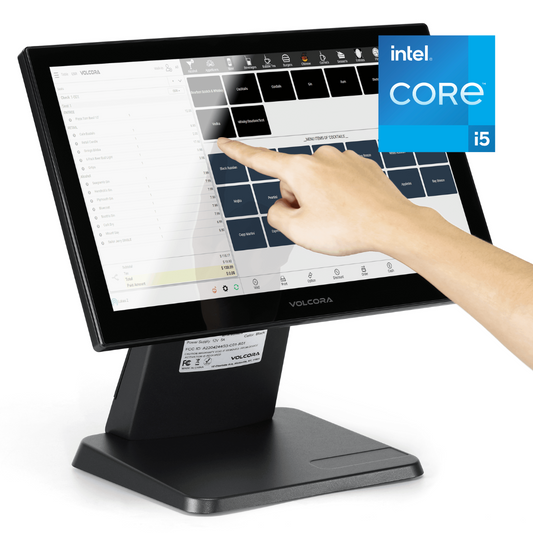
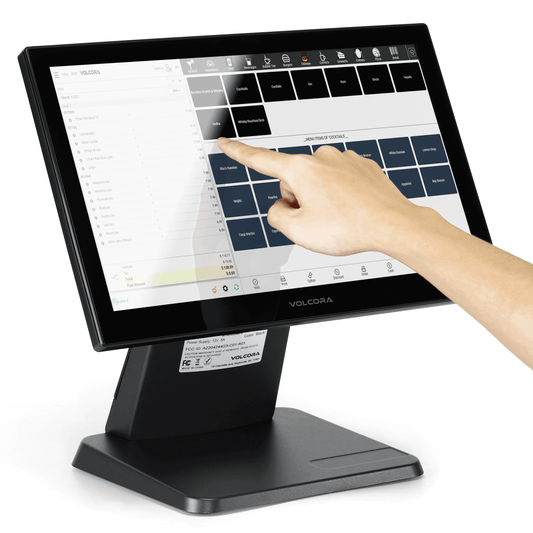
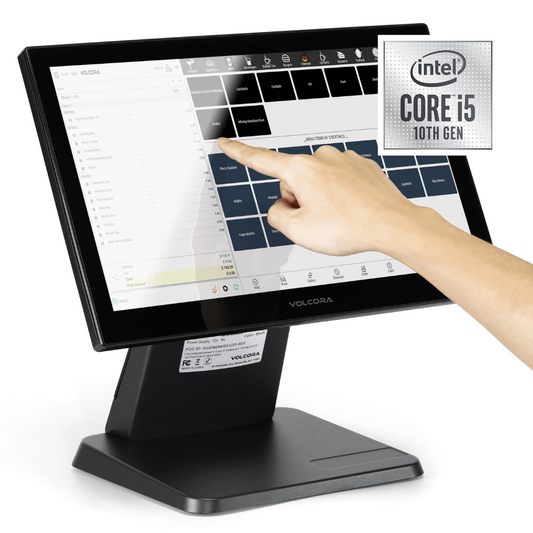
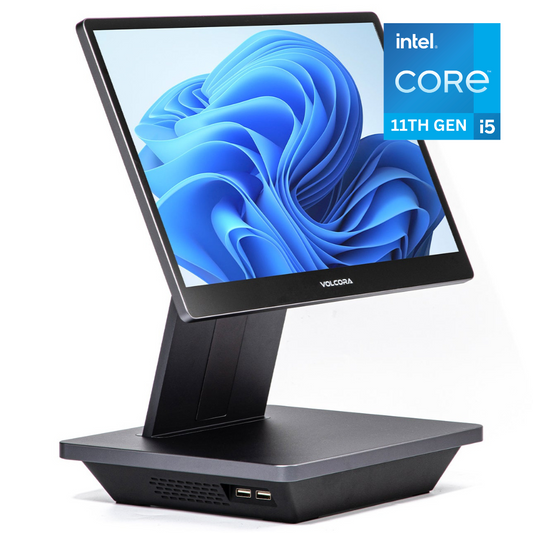
The Volcora KDS is built to these specs: IP54-rated sealed construction, fanless design, PCAP multi-touch calibrated for gloves, 21.5-inch Full HD display, and a metal enclosure. You can see the full spec sheet on the KDS collection page.
Bump Bar vs Touchscreen: Which Input for Each Station
Every KDS screen can run with PCAP touch, a bump bar, or both. The right choice depends on the station, not the display itself. A bump bar is a physical accessory that pairs with the screen and responds the same whether hands are gloved, wet, floured, or greasy. Touch input is faster for navigating detail but is less reliable in high heat, high-mess conditions, which is why fry, grill, and pizza stations are usually run with a bump bar attached to the same screen.
|
Station |
Conditions |
Recommended Input |
|
Fry, grill, pizza, wet prep |
Gloved, wet, greasy, floured |
Bump bar |
|
High-volume line |
Speed beats precision |
Bump bar |
|
Screen mounted high or off to the side |
Out of easy reach |
Bump bar |
|
Expo, FOH runner |
Cleaner, lower mess |
Touchscreen |
|
Any critical station |
Want a fallback |
Both: bump bar for primary, touchscreen for secondary |
The trade-off runs both ways. A touchscreen is faster for navigating order detail and moving between tickets. A bump bar is more reliable in messy conditions and keeps the screen surface cleaner, but the cable accumulates debris over time and the key overlay eventually wears and needs replacing.
On cost, a monitor plus bump bar typically runs in a similar range to a comparable all-in-one touchscreen, so choosing the more durable input for a difficult station rarely means paying more.
How a KDS Connects to Your POS

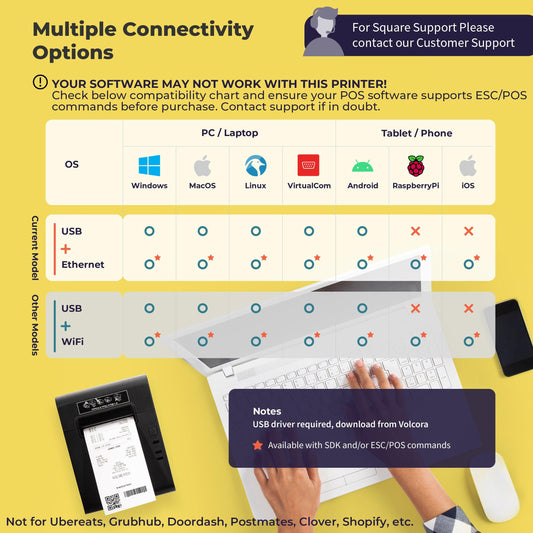
The most common concern buyers raise is whether a new screen will work with the POS they already run. Here is the clarification that settles it: the POS takes the order, and the KDS is the screen that displays and routes it. They communicate over the restaurant's local network, not through any single vendor's proprietary connection.
Volcora KDS hardware works with the POS software you already have. The screen does not lock you to a software vendor, which matters more than most buyers expect.
Ethernet is the recommended primary connection. A wired RJ45 link is the most reliable option in a kitchen environment, full stop.
Wi-Fi works as a secondary path but is less reliable around metal surfaces and appliance interference. Plan it as a backup, not the primary connection.
PoE (Power over Ethernet, 802.3at) carries both data and power down a single Cat6 cable, removing the need for a power outlet at each screen location. This is particularly useful for ceiling mounts, overhead positions, and anywhere running a separate power cable is impractical.
A properly configured KDS runs on the local LAN and keeps displaying orders through an internet outage. The internet is only needed for cloud sync, reporting, and software updates, none of which are required during service.
On installation, the practical setup is a Cat6 run to each screen location plus a standard VESA mount, giving you the flexibility to position the display on a wall, pole, ceiling, or under a shelf. If you’re mapping out the full counter at the same time, Volcora's POS terminals sit on the same network and it is worth mapping the complete cost of a POS setup together.
KDS vs Kitchen Printer: Is the Switch Worth It?
A kitchen printer looks cheaper until you run the numbers past the first month.
|
Kitchen Printer |
KDS |
|
|
Upfront cost |
Under $500 |
$400 to $2,000+ per screen |
|
Ongoing cost |
Paper and ink throughout working life |
Software $10 to $40 per screen per month, no consumables |
|
Lost or jammed tickets |
Common |
Eliminated |
|
Ticket time data |
None |
Built in |
|
Pickup labels |
Yes |
No |
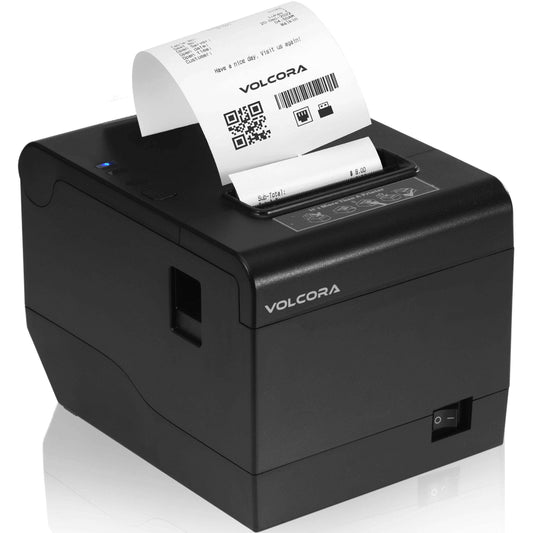
Where a printer still wins. Physical pickup labels for QSR and drive-through, where a cup or bag needs a printed identifier, are something a screen cannot replace. A very simple single-station kitchen on a tight budget can also stay on paper without significant downside. This is why Volcora sells receipt and kitchen printers alongside KDS hardware: labels have a job that a screen cannot do.
One practical note. Experienced kitchen staff often resist the switch to a KDS. After one busy service on a well-configured system, the paper rail rarely comes back.
KDS Hardware Buyer's Checklist

Take this list to any supplier quote and check each spec on the sheet before you commit.
-
Screen size matched to viewing distance and ticket count by station: 15.6-inch at arm's reach, 21.5-inch for prep lines with 1.5 to 2 meter viewing distance, 24-inch or larger for expo and overview positions
-
IP54 minimum across the full enclosure, IP65 near steam or dishwashing. Confirm the rating covers the whole unit, not just the front glass
-
Fanless design with no moving parts
-
Operating temperature rated to at least 50C continuous for line positions near heat sources
-
PCAP touch calibrated for gloves and wet fingers, not just standard capacitive
-
350 nits minimum brightness, 500 or more near windows or under strong lighting
-
Metal enclosure: stainless steel or powder-coated aluminum
-
VESA 75x75 or 100x100 mount pattern for standard wall, pole, and ceiling installs
-
Ethernet-primary connectivity, with PoE (802.3at) support if you need single-cable installs
-
Commercial service life rating of 5 to 8 years, not the 18 to 24 months typical of a consumer tablet
Open Vs Proprietary Hardware
|
Proprietary Hardware |
Open Hardware |
|
|
OS |
Locked to one vendor |
Android or Windows |
|
Software flexibility |
Single platform only |
Works with multiple KDS software platforms |
|
Scalability |
Every replacement goes through that vendor |
Upgrade hardware independently of software |
Ask any supplier one question before you buy: does the unit ship with an open OS that supports third-party apps, or is it locked to a single vendor? The answer determines how much flexibility you have as your operation grows.
Volcora builds open, US-manufactured hardware, the screens, terminals, and mounts, that works with the POS software you already run. Our KDS hardware ships with Android 14 or Windows 11 IoT, both open operating systems that work with the POS software you already run. You can see the full range on the Volcora KDS collection page.
Final Thoughts

A kitchen display system has moved past being a nice-to-have. As restaurant operations scale across dine-in, takeout, and delivery, replacing traditional paper tickets with real time communication between front and back of house is no longer optional for kitchens managing peak hours efficiently.
But the software conversation only gets you halfway. KDS solutions are only as reliable as the screen they run on. Buy the display on durability specs, not brand recognition, and you avoid the real cost: hardware that fails mid-service when guests are waiting.
Volcora builds the hardware side of that decision. Browse the full KDS range and spec a setup built to handle real kitchen operations, not a demo kitchen.
Frequently Asked Questions
What screen size KDS do I need?
Match the screen to viewing distance and ticket count by station. Use a 15.6-inch screen at arm's reach, a 21.5-inch screen for a prep line where staff stand 1.5 to 2 meters back, and a 24-inch or larger screen for an expo or overview display read from across the room. Add at least 5cm of screen height for every 30cm of viewing distance as a working rule.
Do I need a bump bar or is a touchscreen enough?
Use a bump bar for wet, gloved, greasy, or high-volume stations such as fry, grill, and pizza, where touch input becomes unreliable. A touchscreen works well for cleaner positions like expo or a front-of-house runner display. Running both on a critical station gives you a reliable fallback.
How does a KDS system connect to my POS?
A KDS connects over your restaurant's local network using TCP/IP. Ethernet is the most reliable primary connection in a kitchen environment. Wi-Fi works as a secondary option. PoE carries data and power down a single Cat6 cable, which simplifies installations at ceiling and overhead positions. No internet connection is needed for the core display function during service.
What IP rating do I need for a kitchen KDS?
IP54 is the minimum for general kitchen use. Step up to IP65 near steam equipment, dishwashing areas, or exhaust hoods. Confirm the rating covers the full enclosure, not just the front glass, before you buy.
What happens if the internet goes down?
A properly configured KDS runs on the restaurant's local network, so order display and routing keep working through an internet outage. The internet is only needed for cloud sync, reporting, and software updates. A wired Ethernet connection adds a further layer of reliability over Wi-Fi.