

What is a POS System: Features, Types & Benefits for for Modern Businesses

Key Takeaways
-
A POS system combines POS software with hardware to run sales transactions, track inventory, and print receipts, often via a cloud based POS system that syncs online.
-
Costs include three parts: POS software, hardware, and payment processor fees. Choose tools that match your workflow.
-
Pick features by business type: Retail vs. restaurant needs; they require different POS setups. (e.g., online ordering, customer loyalty programs, multiple payment types, mobile or fixed pos device).
Many first-time business owners ask, “What is a POS system?” The short answer: it’s the nerve center that keeps sales running smoothly. The detailed answer: it blends software and hardware to run checkout end to end, letting you process sales, accept payments, and manage business data in one place.
A modern point of sale system handles credit and debit cards, cash, contactless, and online payments, replacing the electronic cash register while streamlining the sales process. You get real-time inventory, reporting, and insights that boost business efficiency.
The right POS system matches your workflow and budget, minimizes hardware costs, and keeps checkout fast, for you and your customers. We’ll compare types, costs and features so you can find the best solution for your business. We’ll show you how to pick a system that fits your workflow and budget, cuts manual work, and keeps checkout fast for customers.
What is a POS System?

A POS (Point of Sale) system is the tech that lets you accept payments and record sales at the exact moment a customer checks out at the counter, the table, or a market stall. It blends POS system software with hardware so you can process transactions fast, keep stock accurate, and see what’s selling in real time.
-
Hardware (the devices): touchscreen terminal or tablet, credit card reader (chip/tap/swipe), receipt printer, cash drawer, barcode scanner.
-
Software (the brain): the app that processes transactions, tracks inventory, manages catalogs, applies taxes/discounts, and generates reports, often syncing across locations and online.
What it replaces: old cash registers and manual ledgers that slow down checkout and hide useful data.
Why Businesses Upgrade:
-
Speed & accuracy: faster sales transactions, fewer errors.
-
Inventory visibility: real-time counts tied to every sale.
-
Customer data: receipts, purchase history, loyalty.
-
Multi-location sync: consistent pricing/stock across stores and online.
How Does a POS System Work: A 6-Step Guide

-
Items captured: Products are scanned or selected in the point of sale POS on a POS terminal, mobile POS system, or tablet POS systems (any internet enabled device).
-
Total calculated: The system tallies line items and applies any discounts or fees so you can process payments accurately.
-
Payment processed: The card reader handles mobile payments and accepts contactless payments, or you take cash payments; the processor verifies payment details.
-
Receipt issued: A receipt is printed or sent digitally as proof of purchase for the customer.
-
Inventory updated: Stock is adjusted automatically, which is useful for retail businesses, and online sales.
-
Sales data recorded: The system stores sales data in the cloud for reporting and customer relationship management, so you can access it anytime from any internet enabled device.
Pro Tip: Modern POS systems and cloud based systems sync in real time across mobile devices and locations, saving time and tightening business operations.
POS Hardware and Accessories

Your POS hardware is the hands and feet of checkout. It captures items, processes payments, and issues receipts. Each device plays a specific role to keep transactions fast, accurate, and secure.
POS Terminals
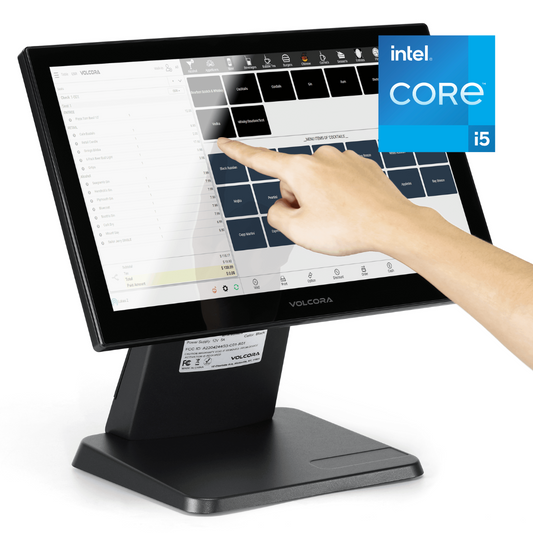
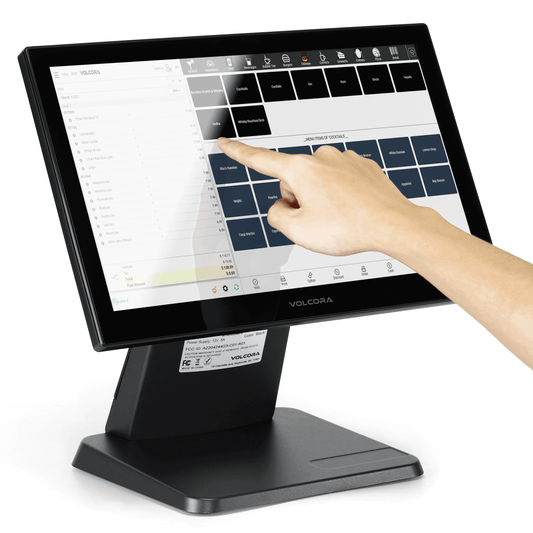
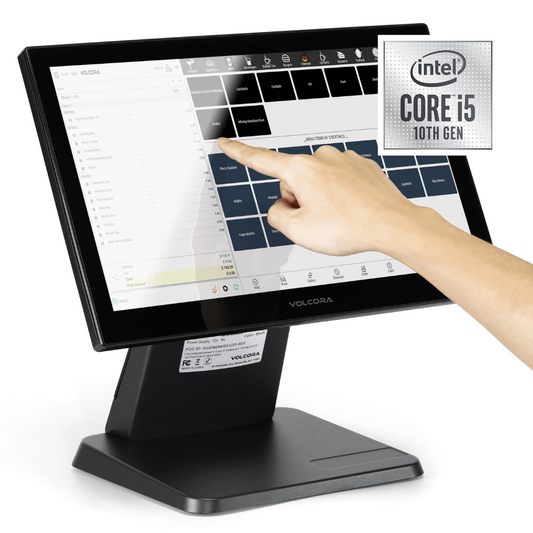
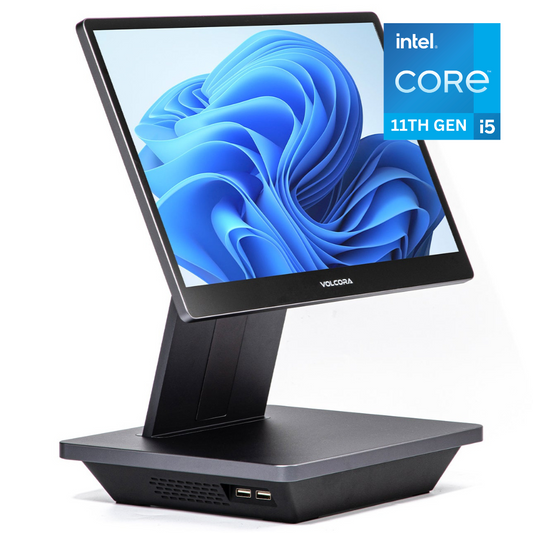
POS terminals are hardware-only and software/payment-agnostic: run your preferred POS app on Windows or Android, plug in the peripherals you already use, and get clean cable management with fast installs.
-
Connectivity: Multiple USB/USB-C, Ethernet (LAN), Serial (RS-232), Wi-Fi, and Bluetooth for receipt printers, barcode scanners, cash drawers, and customer displays.
-
Counter-ready build: Bright touchscreens, stable metal bases, and VESA mounting ensure a secure fit for kiosks or tight spaces.
-
Use case: Ideal for fixed retail and hospitality lanes; pair with your external card reader/payment terminal.
-
What to check: OS (Windows/Android), required I/O, mounting, and counter footprint.
Card Readers & Payment Devices
-
Accept chip, tap/contactless, and swipe via compact readers.
-
Connect to tablets/phones over Bluetooth or via USB to a counter POS terminal.
-
Look for encryption and compliance; secure readers protect payment details and your customers.
-
Handheld all-in-one units (screen + reader + printer) suit mobile POS system use in pop-ups and tableside service.
Cash Drawers & Registers
![Buy [Refurbished] 13'' Mini Cash Register Drawer, 4 Bill/5 Coin, Black, Stainless Steel Front, Fully Removable Cash Trays online](https://cdn.shopify.com/s/files/1/0257/3225/1703/files/500039_6.jpg?v=1739980921)
-
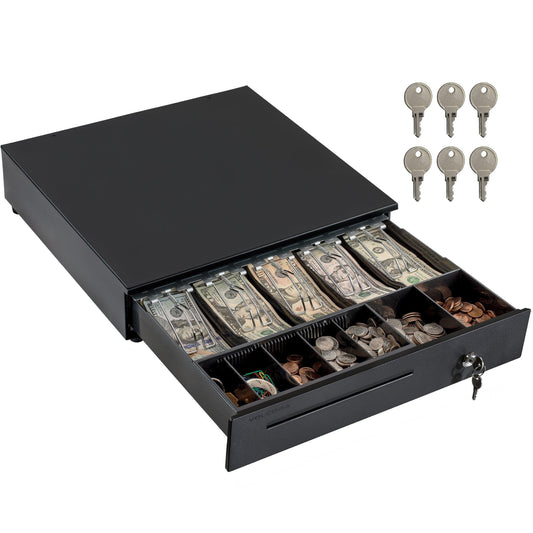
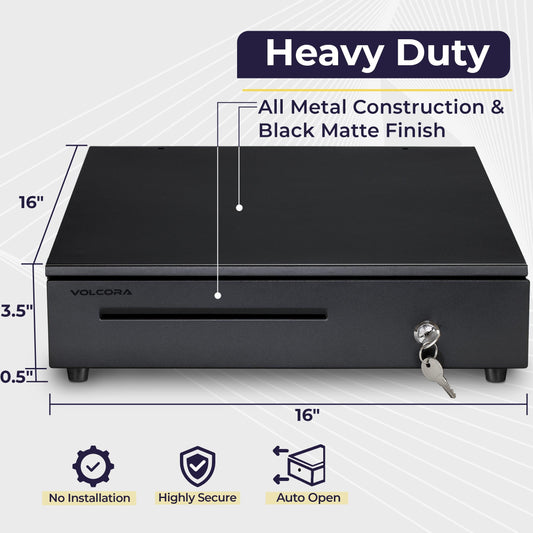
Cash drawers store bills/coins securely and open only when authorized by the POS or receipt printer.
-
Modern register setups combine a touchscreen, POS app, drawer, and printer at one station.
-
Track open events to tighten cash control; choose metal frames and lockable inserts for durability.
Barcode Scanners

Barcode scanners speed item lookup and cut pricing errors; inventory updates automatically.
Types:
-
Handheld: flexible at retail counters.
-
Fixed-mount: embeds in counters for high-volume lanes.
-
Wireless: Bluetooth for mobile checkout carts.
Many apps can use a phone/tablet camera for basic scanning, providing a budget-friendly for small retail businesses.
Receipt Printers & Digital Receipts

-
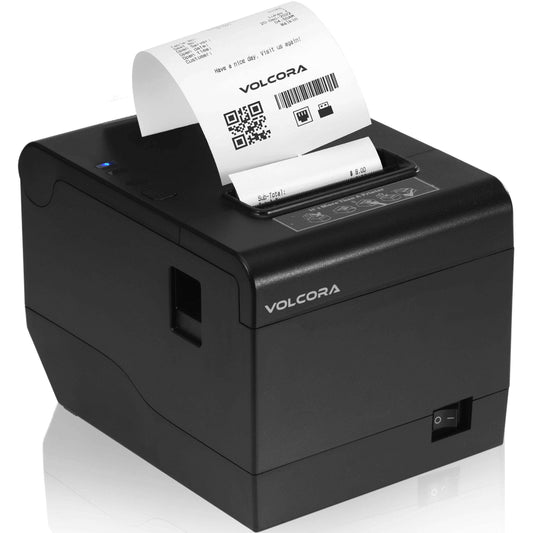
Thermal printers are fast and quiet; impact printers suit kitchens.
-
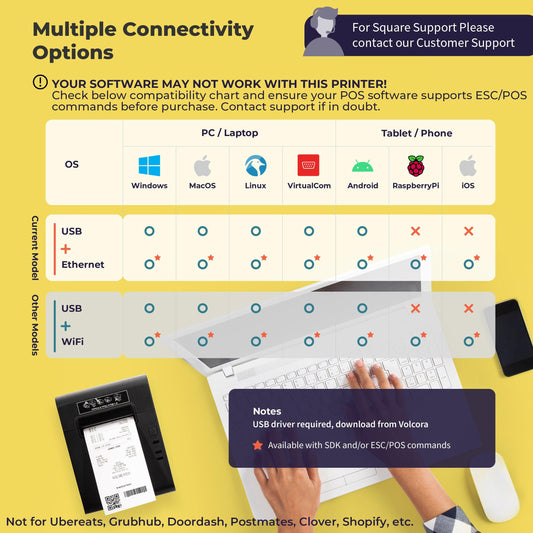
Connect via USB, Ethernet, or Bluetooth; integrate so receipts print automatically after approval.
-
Offer digital receipts by email/text to reduce paper and simplify customer records.
Key Components Pricing Guide
|
Component |
What It Does |
Typical Cost Range |
|
Card Reader |
Accepts chip, tap/contactless, Apple/Google Pay |
$50 - $150 |
|
Receipt Printer |
Prints customer receipts |
$80 - $95 |
|
Cash Drawer |
Stores cash securely; certain models open when authorized |
$40 - $57 |
|
Barcode Scanner |
Speeds product lookup and updates inventory |
$38 - $60 |
|
Tablet/ Terminal |
Runs POS software; displays transactions |
$460 - $859 (model-dependant) |
|
Customer Display |
Shows prices/totals to the customer |
$100 - $250 |
*Ranges vary by brand and features. We provided our approximate prices for the items we keep and more general approximates for ones we don’t/ Many providers offer starter kits bundling hardware.
Software Features
-
Payment processing: Chip & PIN, contactless, and mobile wallets with real-time authorization, encryption, and tokenization.
-
Inventory management: Real-time stock tracking, low-stock alerts, multi-location counts, barcode/SKU management, and smarter reorders.
-
Sales reporting: Daily/weekly/monthly reports, best-sellers, sales per hour, and profit margins all exportable for accounting.
-
Customer management: Purchase history, profiles, loyalty programs, targeted promos, and email/text receipts.
-
Employee management: Staff logins, role permissions, hours tracking, and sales by employee.
-
Multi-location sync: One dashboard for all stores, warehouses, and pop-ups with instant data updates.
-
Integrations: Connect finance and commerce tools like Xero, QuickBooks, Shopify, WooCommerce, and Mailchimp to streamline workflows.
Types of POS Systems

Choosing the right POS setup starts with how you sell, be it fixed counter, mobile, or a mix of both. Your decision comes down to workflow, volume, budget, and connectivity needs. Below, we break down the main types, when to use each, and the trade-offs to consider so you can pick the best fit for your business.
Traditional (On-Premise) POS
What it is: Software installed on local computers/servers with fixed counter hardware.
Best for: Established retailers/restaurants with IT support and high transaction volumes.
Pros: One-time license, full data control, runs offline reliably.
Cons: Higher upfront cost, limited remote access, manual updates/maintenance.
Examples: Lightspeed On-Premise, Retail Pro, NCR Counterpoint.
Cloud-Based POS
What it is: Software runs online; access from any device with internet.
Best for: Small to mid-size businesses, multi-location retailers, growing brands.
Pros: Lower upfront cost, automatic updates, real-time data anywhere, fast setup.
Cons: Needs stable internet (most offer offline mode), ongoing subscription.
Examples: Square, Shopify POS, Zettle by PayPal, Clover.
Mobile POS (mPOS)
What it is: POS app on a smartphone or tablet with a portable card reader.
Best for: Market traders, pop-ups, food trucks, in-aisle or tableside checkout.
Pros: Ultra-portable, affordable hardware, accept payments anywhere.
Cons: Smaller screens, fewer advanced features than full counter setups.
Examples: Square Reader + app, SumUp Air, Zettle Reader.
Industry-Specific POS
Retail POS: Barcode scanning, variants (size/color), omnichannel stock, labels.
Hospitality POS: Table management, kitchen display systems, split bills, modifiers.
Service POS: Appointment booking, client history, staff schedules (salons, gyms).
Why choose it: Purpose-built workflows reduce errors and speed daily operations.
Benefits of Using a POS System
A POS system improves how you manage daily operations, interact with customers, and make business decisions. It helps you save time, reduce errors, and use accurate data to plan for growth. Here are 6 benefits to businesses:
1. Faster Checkout
Reduce queue times with barcode scanning and contactless payments, and handle split payments, discounts, and refunds in seconds.
2. Real-Time Inventory Tracking
Know exactly what’s in stock across every location, set low-stock alerts to prevent overselling, and automate reorders from suppliers.
3. Accurate Sales Reporting
See best-sellers by hour, day, and season; track profit margins and spot slow movers; and export clean reports for your accountant (VAT returns, year-end).
4. Customer Insights
Build customer profiles with purchase history, send targeted promotions or loyalty rewards, and collect email addresses for ongoing marketing.
5. Employee Management
Track who sold what and when, set role-based permissions (manager vs. staff), and monitor hours worked for payroll.
6. Omnichannel Integration
Sync in-store and online inventory (Shopify, WooCommerce), offer click-and-collect or ship-from-store, and manage every channel from a single dashboard.
Do You Need a POS System?
Not sure if you actually need a POS? Use this quick checklist. If several points fit your business, it’s time to upgrade.

You Probably Need One If:
-
You sell physical products in-store or at markets
-
You take more than 50 transactions per week
-
You struggle to track inventory manually
-
You want to accept card payments (not just cash)
-
You plan to open multiple locations
-
You sell online AND offline and need synced stock
You Might Not Need One If:
-
You're a solo service provider (freelancer, consultant) with invoicing software
-
You process fewer than 10 transactions per week
-
You operate cash-only at car boot sales with no stock tracking needs
Pro Tip: Most cloud POS providers offer free trials, so test before committing.
How to Choose the Right POS System for Your Business
We’ve put together this table to help you narrow vendors fast and pick a system that fits your workflow and budget:
|
Step |
Decide On |
Quick Tip |
|
Business Type |
Retail, Café/Restaurant, Service |
Match features to how you sell. Don’t pay for extras you won’t use. |
|
Budget |
Entry, Standard, Advanced |
Include accessories (paper, mounts, cables) in total cost. |
|
Integrations |
Accounting, Ecommerce, Marketing |
If it doesn’t integrate, you’ll be stuck with manual work. |
|
Ease of Use |
Training, UI, Uptime |
Pilot with staff on a rush-hour test. |
|
Reviews & Compliance |
Support, Fees, Tax |
Scan reviews for hidden fees or lock-ins before you sign. |
Next Steps: Getting Started with a POS System

Step 1: List your must-have features
-
Payments: chip, contactless, mobile wallets
-
Inventory tracking and low-stock alerts
-
Multi-location sync
-
Industry needs: table management, appointments, modifiers, labels
Step 2: Compare 3–5 providers
-
Book demos or start free trials
-
Run a mock checkout with real staff
-
Review contract terms, fees, and cancellation
Step 3: Calculate total cost of ownership (12 months)
-
Hardware + software + processor fees
-
Include setup, training time, and support
Step 4: Migrate your data
-
Import products, prices, and customer lists
-
Test with small transactions before launch
-
Train staff and assign roles/permissions
Step 5: Go live and monitor
-
Watch transaction speed at peak hours
-
Gather staff feedback after week one
-
Review monthly reports to optimize
Pro tip: Most businesses see ROI within 3–6 months from faster checkouts, fewer stock errors, and cleaner reporting.
Ready to Modernize Your Checkout?

A good POS system isn’t just a till, it’s the engine that keeps your business processes moving. The right POS solutions help you track sales, manage inventory, and accept multiple payment methods from mobile and tablet devices or fixed terminals, whether you run retail stores, grocery stores, or a restaurant POS system.
Modern platforms run on familiar operating systems, store data securely (often on a remote server), and access data instantly for cleaner reporting and easier handoffs to your accounting software. With today’s mobile technology, you can unify counters, back office, and online, so every transaction feeds one clear picture of performance and growth. Looking for reliable terminals, drawers, and printers? View Volcora POS hardware to complete your setup.
Frequently Asked Questions
1. What does POS stand for?
POS stands for point of sale. It refers to the moment and place a customer pays for a purchase, and to the system that handles it: the terminal, card reader, cash drawer, receipt printer, and software that take the payment and record the sale. The abbreviation is used for both the physical checkout location and the technology running it.
2. What is a POS system in simple terms?
A POS system is the hardware and software a business uses to take payments and record sales at checkout. It tallies the order, processes the card or cash, issues a receipt, and updates inventory and sales reports automatically. In short, it is the checkout technology that replaces a traditional cash register with a connected, data-driven setup.
3. What are the main components of a POS system?
A POS system has two parts. The hardware includes a touchscreen terminal or tablet, a card reader, a receipt printer, a cash drawer, and often a barcode scanner and customer display. The software handles payment processing, inventory tracking, catalog management, tax and discount rules, and reporting. Together, they take payment and log the sale in one connected workflow.
4. What is the difference between a POS system and a cash register?
A cash register only records cash transactions and stores bills and coins. A POS system does that and much more: it accepts cards and contactless payments, tracks inventory in real time, generates sales reports, manages customers, and syncs data across locations. A cash register is a standalone device; a POS system is a connected platform built around a modern checkout.
5. Can one POS system work for both retail and food service?
Yes, many cloud POS platforms run both retail and food service modes, and the core hardware is shared. A retail counter and a restaurant pass use the same terminals, drawers, and printers. Food service usually adds a kitchen display screen and a receipt printer at the line, while retail leans on barcode scanners and label printing for shelf tags and product variants.
6. Can I use a POS system without an internet connection?
Yes. Most modern POS systems include an offline mode that queues transactions locally and syncs them once the connection returns. Card payments may need a brief connection to authorize, but cash sales work fully offline. Traditional on-premise systems run locally and do not depend on the internet at all, which suits businesses in areas with unreliable connectivity.
7. Is POS system data secure?
A reputable POS system protects data with PCI DSS compliance, end-to-end encryption, and regular backups. Card details are encrypted at the reader, so raw card numbers never sit on the terminal itself. Choose providers that publish their compliance status, offer role-based user permissions, and log every cash-drawer open event and refund for audit purposes.
8. How much does a POS system cost for a small business?
A small business POS setup typically runs $300 to $1,500 in hardware for a single lane, $0 to $100 per month in software (free tiers exist), and 1.5% to 3.5% in payment processing fees per transaction. Total cost depends on the number of stations, the hardware bundle, and the software tier. Volcora hardware is software and payment-processor agnostic, so you keep control of both.